
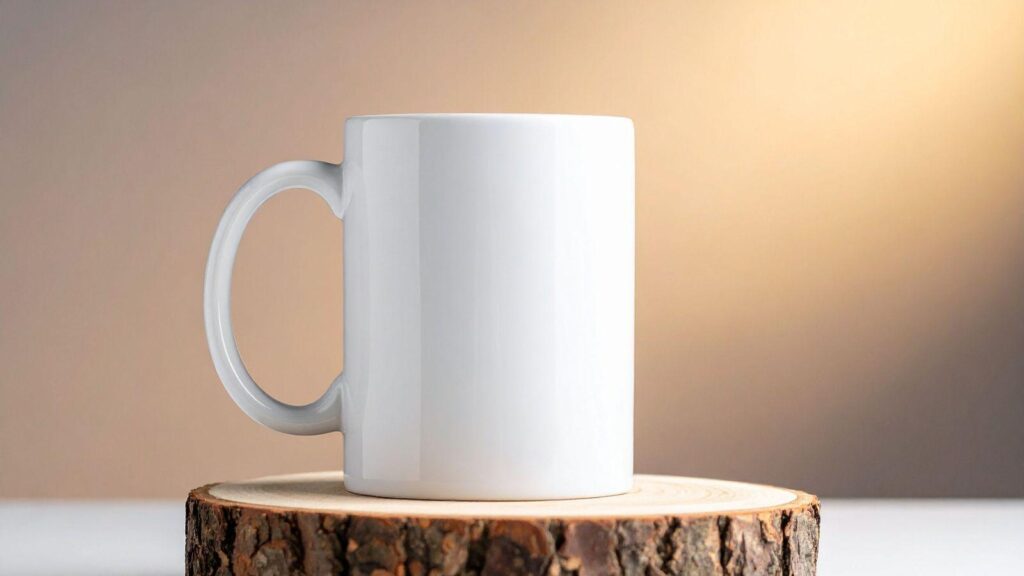
A custom mug is one of the most practical housewarming gifts: useful, easy to personalize, and simple to produce in small quantities. For someone without formal design training, however, preparing a print-ready file can feel technical. Issues like curved surfaces, color shifts, and export settings often cause confusion.
Mug mockup generators reduce that complexity. They provide correctly sized templates, built-in alignment guides, and preview modes that simulate how artwork wraps around a cylindrical surface. Instead of starting from a blank canvas, users adapt structured layouts that already account for common printing requirements.
One accessible starting point is the mug design printer offerings from Adobe Express, which combine browser-based design tools with print-aligned templates. Using a structured mockup workflow helps ensure the design remains readable, centered, and production-ready.
The following step-by-step process covers specifications, layout, color handling, personalization, and export—along with practical tool notes at each stage.
Step-by-Step Guide to Using Mug Mockup Generators
Step 1: Define custom mug specifications
Confirm mug size, material, and printable area before beginning design work.
- Choose standard sizes (typically 11 oz or 15 oz ceramic).
- Confirm the printer’s exact printable dimensions.
- Identify whether bleed margins are required.
- Open a mug template inside your mockup generator.
- Set export resolution to 300 DPI if adjustable.
- Incorrect dimensions may result in cropping.
- Dark mugs require different color handling than white mugs.
- Some printers trim slightly inside template edges.
What to watch for
- Incorrect dimensions may result in cropping.
- Dark mugs require different color handling than white mugs.
- Some printers trim slightly inside template edges.
Tool notes
If you need to convert physical measurements (inches or millimeters) into pixels for printer alignment, a free unit conversion tool such as RapidTables can help ensure accuracy before exporting.
Step 2: Choose a layout that works on curved surfaces
Select a layout that stays legible once wrapped around the mug.
How to do it
- Use a centered or panel-based layout.
- Keep important text within safe margin zones.
- Limit fonts to one or two styles.
- Preview in 3D mockup mode.
- Test both left- and right-facing orientations.
- Thin script fonts may become unreadable when printed.
- Long phrases can distort near the seam.
- Designs that look centered on a flat canvas may appear off-center once wrapped.
What to watch for
- Thin script fonts may become unreadable when printed.
- Long phrases can distort near the seam.
- Designs that look centered on a flat canvas may appear off-center once wrapped.
Tool notes
For evaluating font readability before committing to export, Google Fonts’ specimen view can help compare weight and clarity across sizes without functioning as a design editor.
Step 3: Apply Pantone color matching
Goal
Ensure printed colors closely match expectations.
How to do it
- Identify primary and accent colors.
- Confirm whether your printer requires CMYK files.
- Reference official Pantone codes when needed.
- Slightly reduce saturation to prevent over-inking.
- Print a small proof if ordering in bulk.
What to watch for
- RGB screen colors appear brighter than printed ink.
- Certain neon or metallic shades may not reproduce well.
- Background colors may look darker on ceramic.
Tool notes
Verify CMYK equivalents using a Pantone color bridge chart (digital reference versions are widely available). This helps align digital color choices with print standards before export.
Step 4: Personalize with names, dates, or photos
Add housewarming-specific details in a balanced way.
- Insert recipient names in bold, legible type.
- Add move-in dates or short quotes.
- Upload high-resolution images (minimum 1500px wide).
- Crop images to avoid wrapping across curved edges.
- Use subtle frames or shapes to contain text.
- Low-resolution photos will print blurry.
- Avoid placing faces at wrap edges.
- Transparent PNG files may show unwanted background edges.
Tool notes
If resizing or compressing images before upload, a lightweight utility like TinyPNG can optimize file size without reducing visible quality.
Step 5: Plan bulk corporate orders
Goal
Prepare efficiently when creating multiple personalized mugs.
- Duplicate the base design for each variation.
- Create a spreadsheet listing names and spellings.
- Keep font styles consistent across versions.
- Use standardized file naming (e.g., “Garcia_Family_11oz”).
- Confirm bulk pricing and turnaround times.
- Misspelled names across duplicates.
- Inconsistent color profiles.
- Confusion between 11 oz and 15 oz versions.
Tool notes
For tracking variations and approvals, project management tools such as Trello can help organize file versions and avoid production mix-ups.
Step 6: Review alignment and print safety
Goal
Verify placement, spacing, and print-readiness before exporting.
How to do it
- Activate margin guides in the template.
- Zoom in to check edge sharpness.
- Confirm spacing from the handle seam.
- Check alignment of text blocks.
- View the wrap preview one final time.
- Text placed too close to trim edges.
- Visual imbalance across the curved surface.
- Elements accidentally extending into bleed zones.
Tool notes
After designing in Adobe Express, use a standalone mug mockup preview generator (many print services offer these) to confirm curvature realism before submitting your file.
Step 7: Export a print-ready mug file
Goal
Produce a high-resolution file accepted by the printing service.
How to do it
- Select high-resolution PDF or PNG export.
- Confirm 300 DPI resolution.
- Flatten layers if required.
- Save an editable master copy separately.
- Upload according to printer specifications.
What to watch for
- Accidentally exporting at 72 DPI.
- Incorrect file format (e.g., GIF instead of PNG).
- Compressed quality settings enabled by default.
Tool notes
Export directly from Adobe Express using its print-ready options. If sharing large files with a printing partner, a secure transfer service like WeTransfer can help maintain file integrity during delivery.
Common Workflow Variations
Photo-Centered Gift Mug
Focus on a single large image with minimal text. Keep faces within the central safe zone.
Minimalist Typography Mug
Use oversized, bold text with generous spacing. Avoid clutter.
Realtor Closing Gift Batch
Create one master template and duplicate for each client name.
Office Relocation Set
Maintain consistent branding elements while customizing department names or dates.
Before You Start Checklist
- ☐ Confirm mug size and print area
- ☐ Gather correct name spellings
- ☐ Prepare high-resolution images
- ☐ Identify Pantone or brand colors
- ☐ Confirm production timeline
- ☐ Review printer export guidelines
- ☐ Decide on orientation (left- or right-facing)
- ☐ Plan bulk quantities if needed
Pre-Export / Pre-Order Checklist
- ☐ 300 DPI confirmed
- ☐ Colors adjusted for print
- ☐ Text inside safe margins
- ☐ Spelling verified
- ☐ Mockup preview checked
- ☐ Correct file format selected
- ☐ Master editable file saved
- ☐ Printer requirements reviewed
Common Issues and Fixes
Blurry print output
Replace low-resolution images and re-export at 300 DPI.
Text appears misaligned after printing
Re-center visually rather than geometrically to account for curvature.
Colors print darker than expected
Reduce saturation slightly before exporting.
Design cropped at seam
Check printable area and reposition inside safe margins.
White halo around image
Flatten layers or match background color exactly.
How To Use Mug Mockup Generators: FAQs
Do I need design experience to create a custom mug?
No. Mug mockup generators provide structured templates that handle sizing and alignment.
Should I choose the mug type before designing?
Yes. Dimensions affect layout and safe margins.
What export format works best?
High-resolution PDF or PNG at 300 DPI is typical, but confirm with your printer.
Are templates better than blank canvases?
For beginners, templates reduce formatting errors and production risk.
How do I ensure the message faces outward when held?
Preview orientation and align key text opposite the handle.